
Background sensing
Keep sampling stable on Android and iOS under power-management constraints.
iOS setup
Configure Podfile, file access, and platform-specific constraints.
Notifications
Set up local notification behavior required by app tasks and background flows.
Build and permissions
Resolve common build issues and configure permissions correctly.
Background sensing
Starting from version 2.0, CAMS supports background sensing natively on Android using the flutter_background plugin. iOS does not allow apps to run in the background as such, but there are a few things you can do to optimize data sampling on iOS.Android
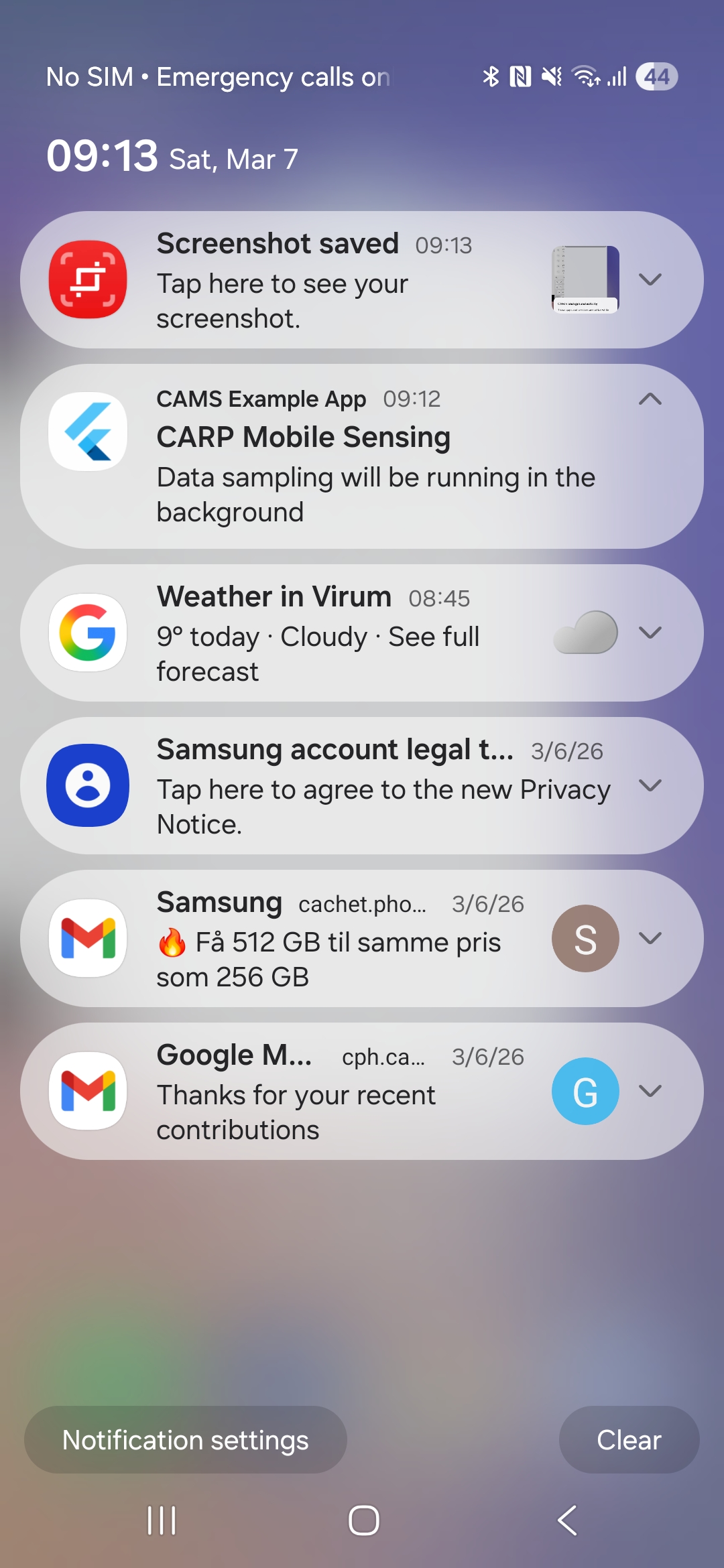
To keep the app running in the background, configure theSmartPhoneClientManager like this, specifying the title and text for the background notification:
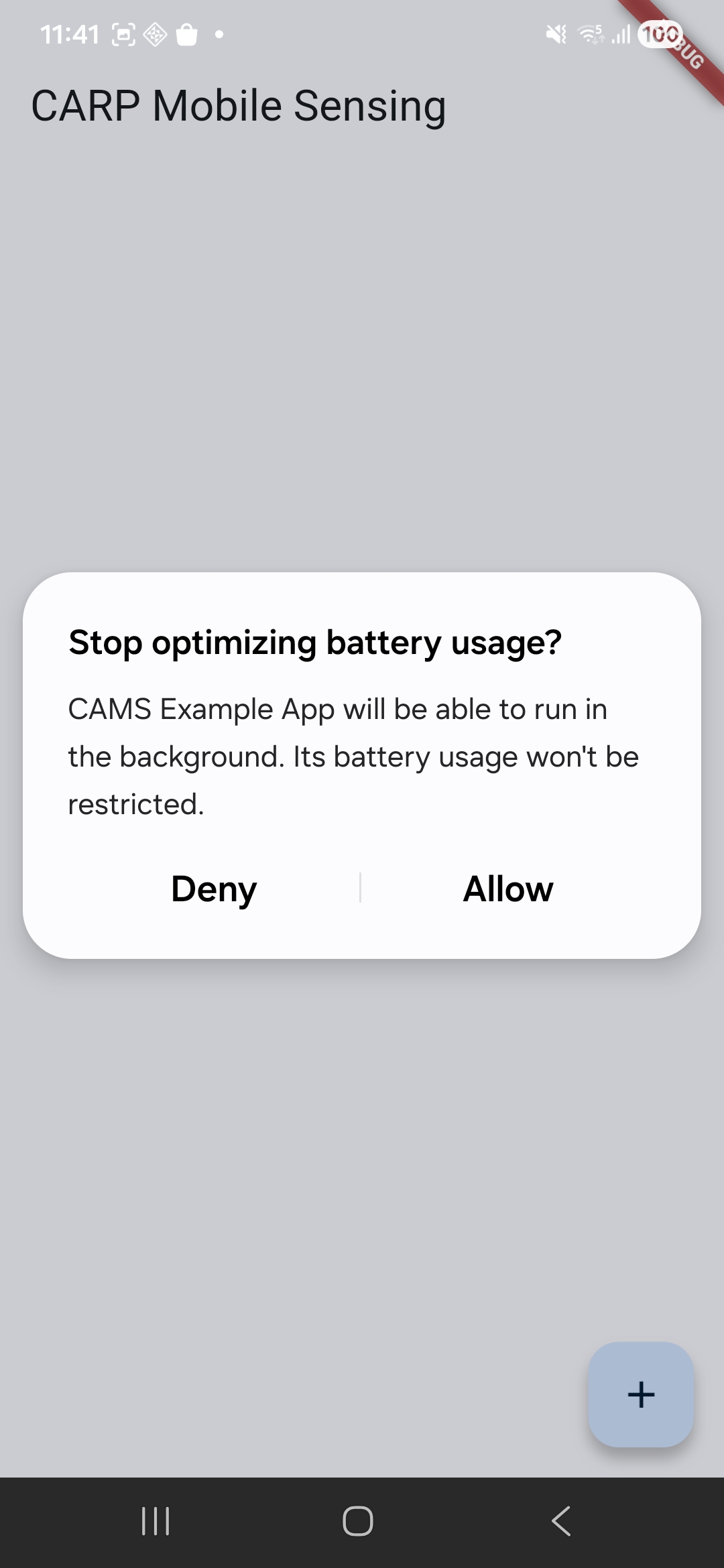
Battery Optimization Permission
Background Notification
App-specific Options
App-specific Options
In the Android Settings, you can optimize background mode for the app by allowing urestricted battery and background data usage.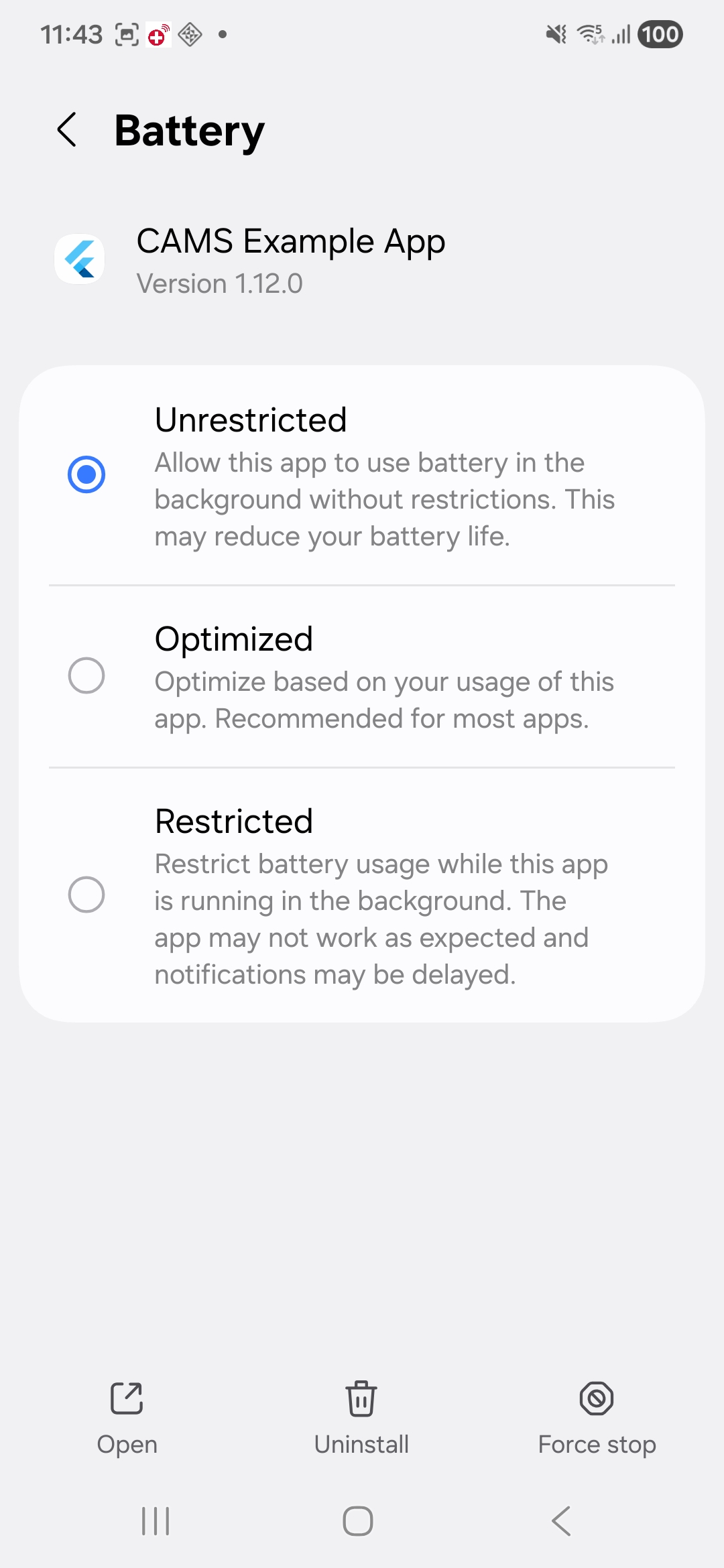
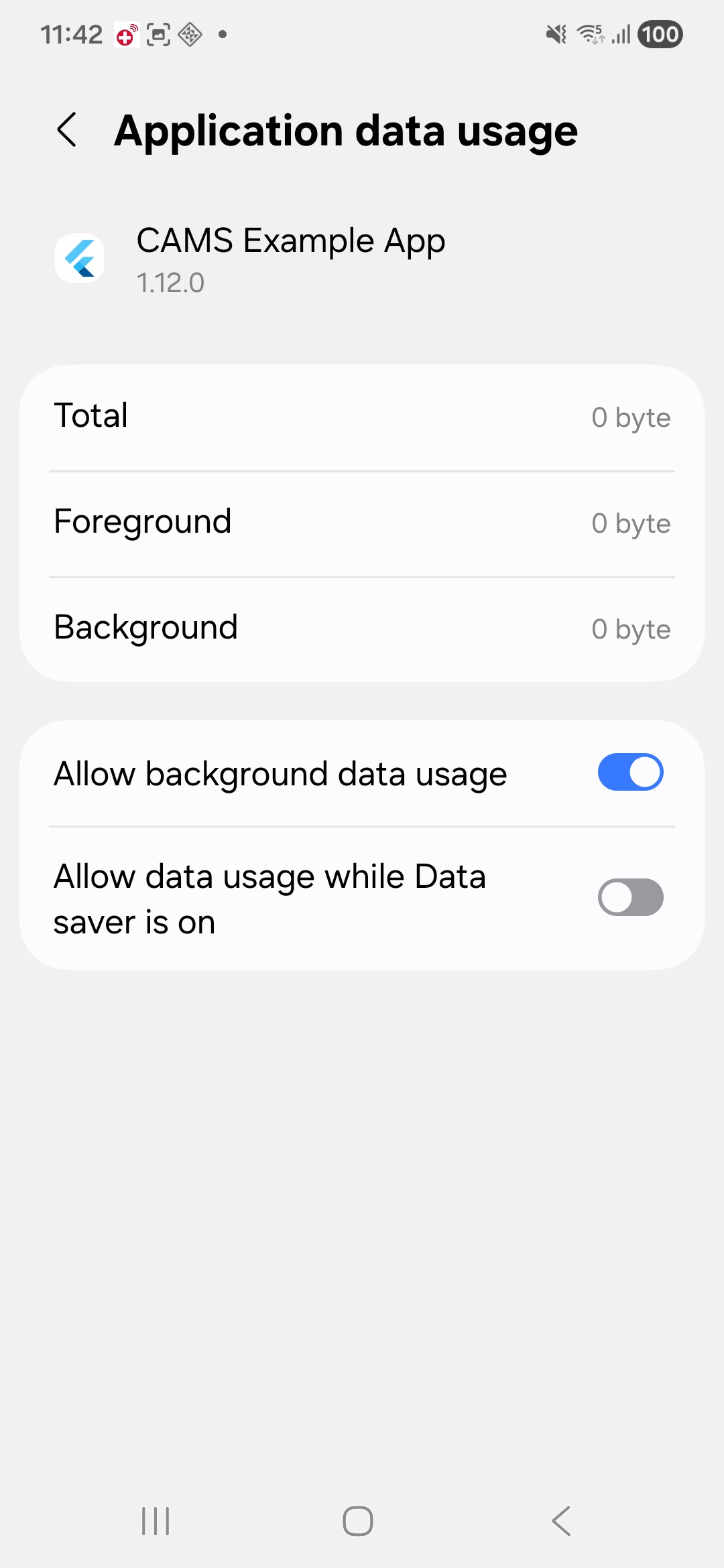
Unrestricted Battery Usage
Background Data Usage
Battery Settings Options
Battery Settings Options
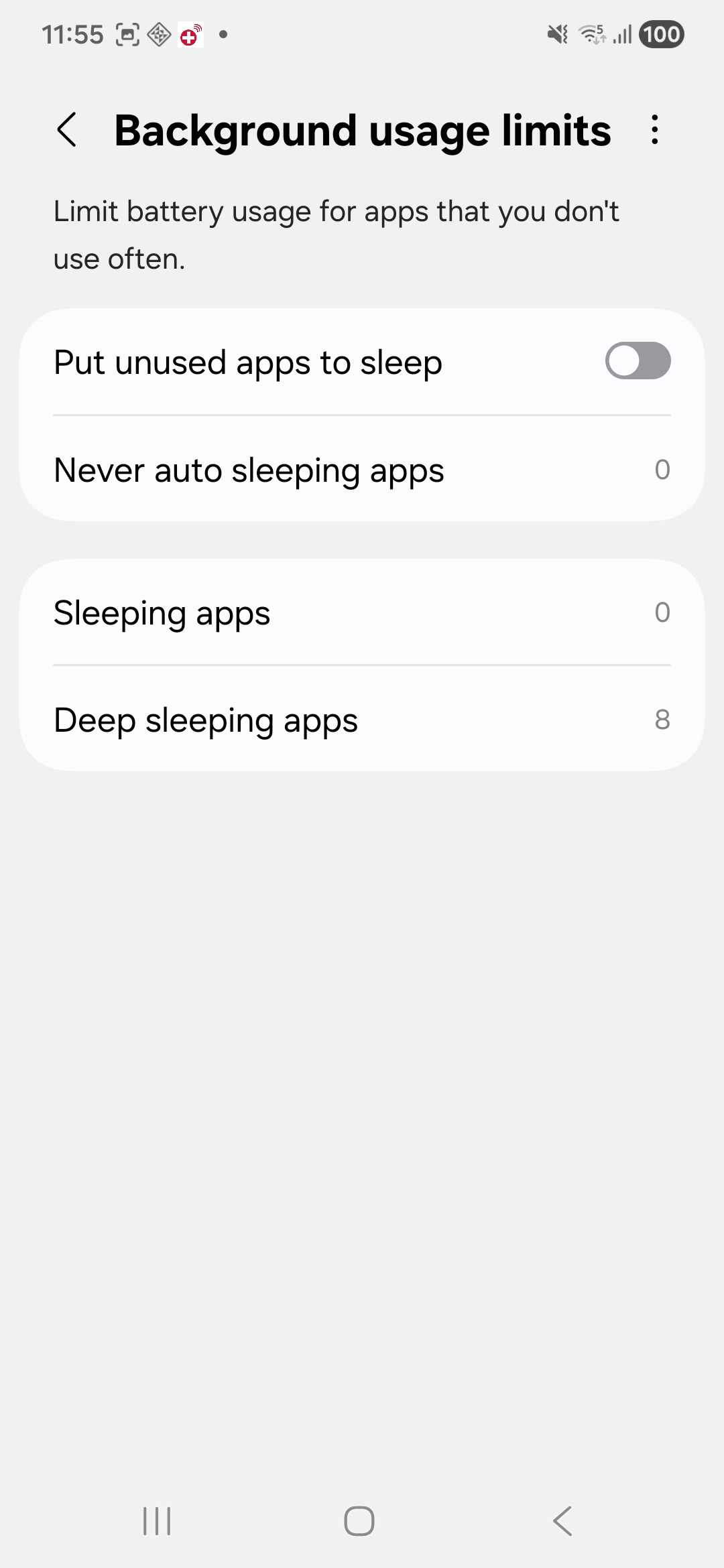
In the Android Settings, you can optimize the battery setting for background mode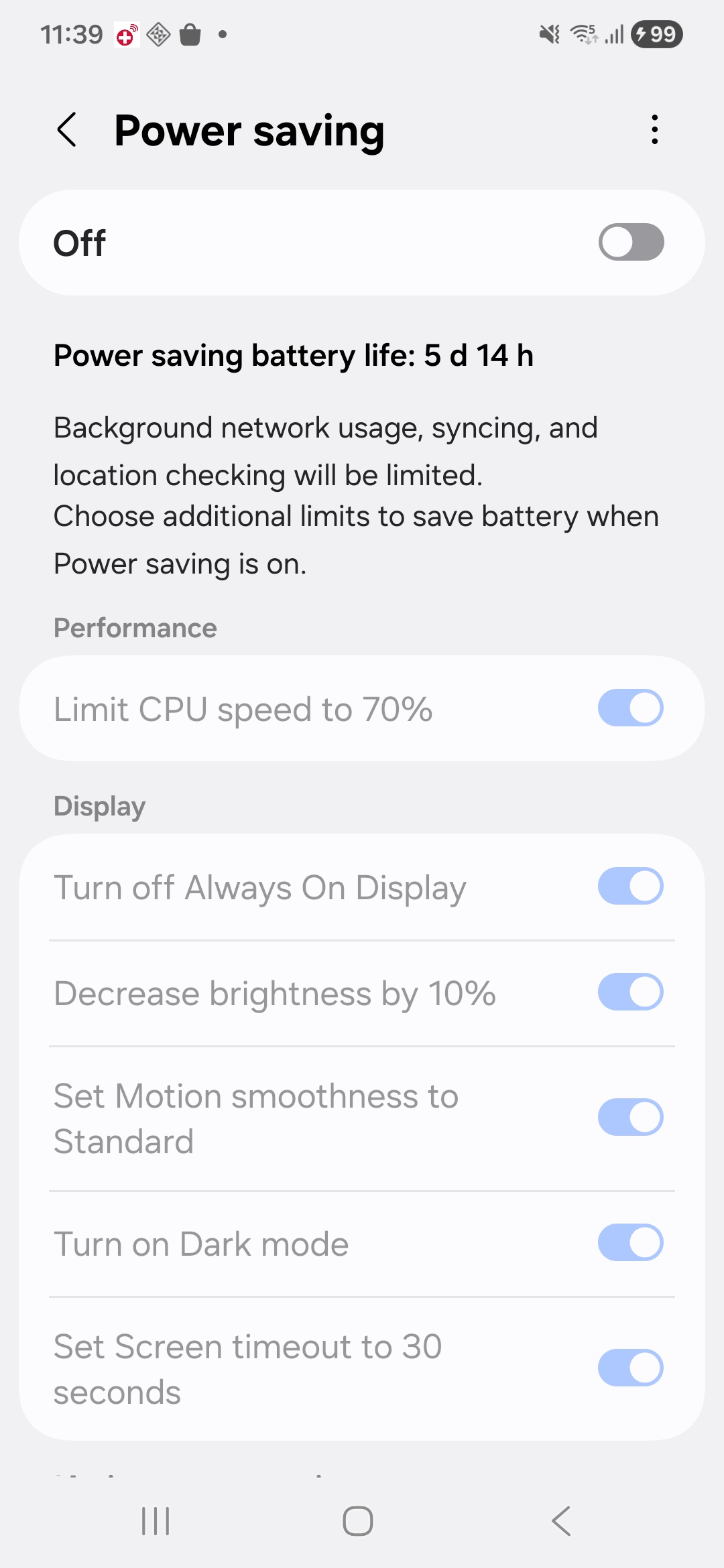
Power Savings Off
Background Usage Limits Off
Resources
- See Issue #97 for a discussion on background sensing.
- See this thread on Reddit on how to keep an app running in the background on Samsung phones.
- See the Don’t Kill My App site and suggestions, e.g. for Samsung phones.
- This setup page for the Cardata app also have some simple guidelines for different phones.
iOS
On iOS, the best way to keep the app running somewhat in the background is to have the app fetch location in the background or keep a BLE connection to an external device. Thecarp_context_package makes use of the location plugin, which supports the collection of location “in the background”. It is important to follow the instruction of the package, including modifying the info.plist and AppDelegate.swift files. Also make sure that “Allow location tracking always” is enabled for the app on the phone.
iOS tends to aggressively kill apps (especially after iOS v. 15). There are a few things to do about this:
Disable Low Power Mode
Disable Low Power Mode
In Settings → Battery, ensure Low Power Mode is OFF.
Enable Background App Refresh
Enable Background App Refresh
In Settings → [Your app] → Background App Refresh, ensure it is ON.If this option is greyed out, first enable it globally in Settings → General → Background App Refresh, then enable it per app.
Guided Access
You can also force the app to always be in the foreground by using the Guided Access feature in iOS. This feature forces the app to be the only app running in the foreground always and is hence not useful for background sensing. But it may be useful if the phone is dedicated to running an app for a specific study. For example, if a dedicated study phone is handed to a user to be used only for a specific study.Audio Playing Hack
Another “hack” to keep the app running in the background is to configure it as an audio player app. Audio playing apps are kept running in the background on iOS. See the sensors app for inspiration.Keeping a BLE connection open
As presented in this coverage study, iOS keeps the app running in the background if it samples data from a BLE device. Note, however, that this really drains the battery.iOS setup
Manually edit Podfile
In a new Flutter project, the iOS Podfile is auto-generated in the ios folder. To make things work, there are a few edits to this file that need to be done:
- Specify the platform version, like adding
platform :ios, '12.0'(should be later than 9.3).- Note that you might need to do this also manually in XCode also - see this issue.
- In the
post_installpart, you should make sure that theconfig.build_settingsis also set to the same platform version (see here and here). - Specify the Swift version by adding
ENV['SWIFT_VERSION'] = '5' - In the
target 'RUNNER'part, add the following linesuse_frameworks!anduse_modular_headers!(if not already added by Flutter) - In the
target 'RUNNER'part, also remove thetarget 'RunnerTests'part (this may cause build issues).
Podfile would look like:
File management
If you want to store data locally on the phone (using theSQLiteDataManager or FileDataManager), and want to grant the user of your app (e.g. yourself during development and debugging) access to it on the phone or in a Mac Finder, add the following keys to Info.plist.
Wi-Fi
Note that on iOS>=12, collection of WiFi info has been restricted – please see- connectivity
- CNCopyCurrentNetworkInfo
- Access WiFi Information Entitlement
- How To Enable the WiFi Information Entitlement in iOS 13
App.framework compatibility
You may get this error:
Notifications
The default notification controller used in CAMS is FlutterLocalNotificationManager, which uses the flutter_local_notifications plugin. It supports scheduling and receiving notifications while the app is in foreground, background, or terminated, but requires platform-specific setup.Follow the flutter_local_notifications README and platform setup guides for Android and iOS.
Initializing WidgetsFlutterBinding
To initialize the Flutter platform channels, you need to call WidgetsFlutterBinding.ensureInitialized() in your main() method, before creating the app. For example - this is the main method of the CAMS demo app:
WidgetsFlutterBinding.ensureInitialized() do?.
Android manifest merge
When building your app, theAndroidManifest.xml files from all packages and their underlying plugins are merged.
When you want to publish your app, which uses various CARP packages and plugins, to the Google Play Store, it can be rejected because it e.g.., tries to collect SMS texts and call logs, which Google considers to be a restricted group of permissions for which you need a valid reason to access those. Unfortunately, research is not in the list of exceptions. Hence, we would like to remove collection of SMS texts and call logs while still keeping collection of calendar information (all in the carp_communication_package).
Illegal permissions can be omitted by specifying that they should not be merged from a lower level manifest. This is done by adding the following lines to the AndroidManifest.xml file of your app, which prevents the restricted permissions from being added:
Permissions
CAMS uses thepermission_handler plugin for handling permissions. Please see their documentation on how to configure permissions on both iOS and Android. In particular, update both Info.plist and Podfile on iOS; otherwise you may have app review issues with Apple.
Build issues
If you’re experiencing any build issue, try these steps:- Run this in your project and try again:
./gradlew clean. On iOS, you might want to remove the .symlink folder.
- Update Xcode, Android Studio, VS Code, and Android SDKs to the latest versions.
- If the issue persists, clone
carp_mobile_sensingand run theexampleapp on the same platform. If that works, compare your project with the example setup. - If the issue still persists and there is no existing GitHub issue, open a new issue. Use the issue template and provide a reproducible case based on the
exampleapp. - Only open an issue after step 3. Build issues without reproducible example details may be closed.
MissingPluginException or PlatformException
You may getMissingPluginException or PlatformException on plugins which are used by CAMS (like flutter_background). Even though the “pub get” and “pub upgrade” commands do get and update these transitive plugins, and the app compiles, you may still need to explicitly depend on them in you app’s pubspec.yaml file. See issue #530.