
What participants see
Install CARP Studies from the App Store or Google Play. This is what a participant does the first time. It takes about three minutes. The whole flow, recorded on an Android phone:
1. How were you invited?
Section titled “1. How were you invited?”The first screen asks how the study team invited you. The choice decides how you sign in.
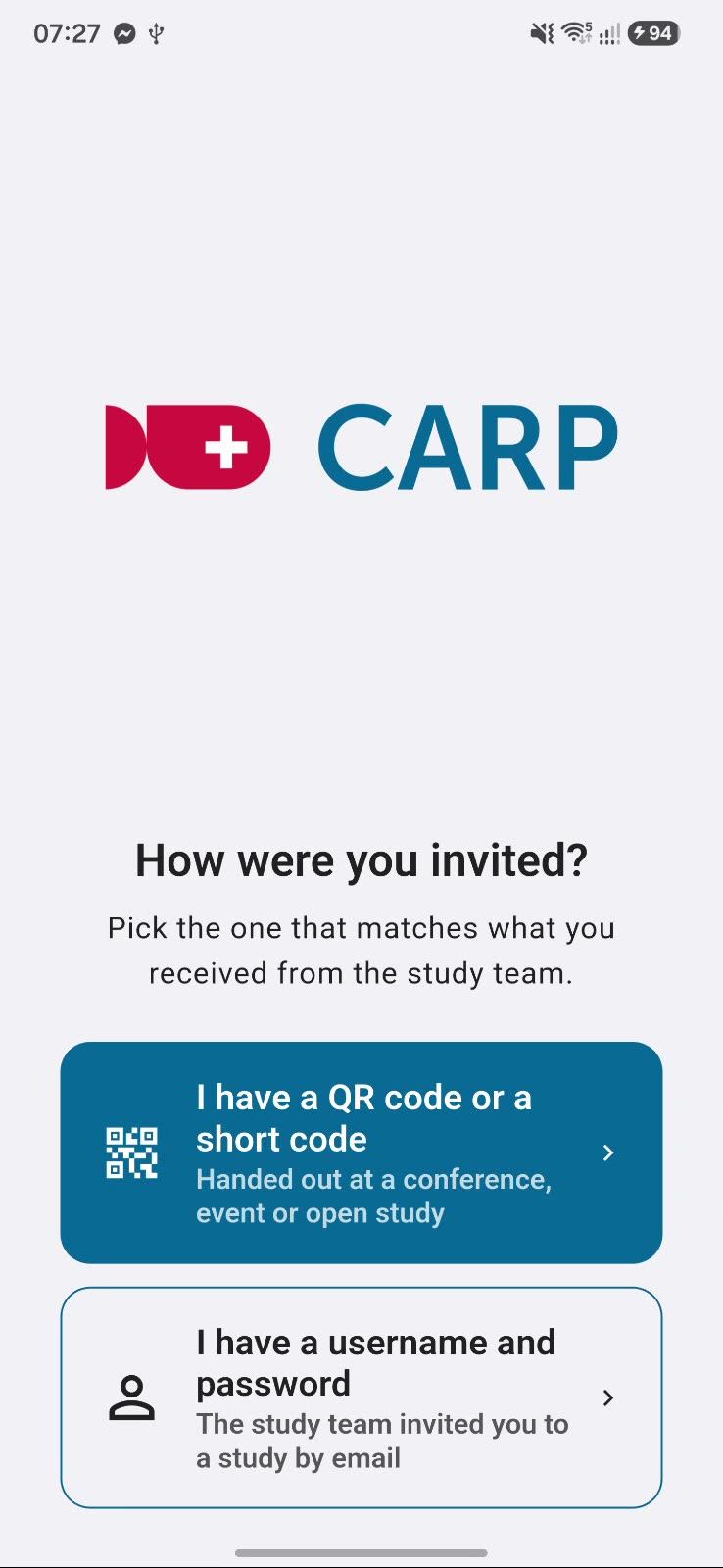
| You received | Choose | You are |
|---|---|---|
| A QR code or a short code (5 letters) | I have a QR code or a short code | Anonymous. No email or password. The app records that you joined anonymously, and the study collects no personal or identifiable data. |
| An email invitation with an account | I have a username and password | Signed in with your own account, so the study team knows who you are. |
The researcher sets this up in the Portal. See Go live.
2. Scan or enter the code
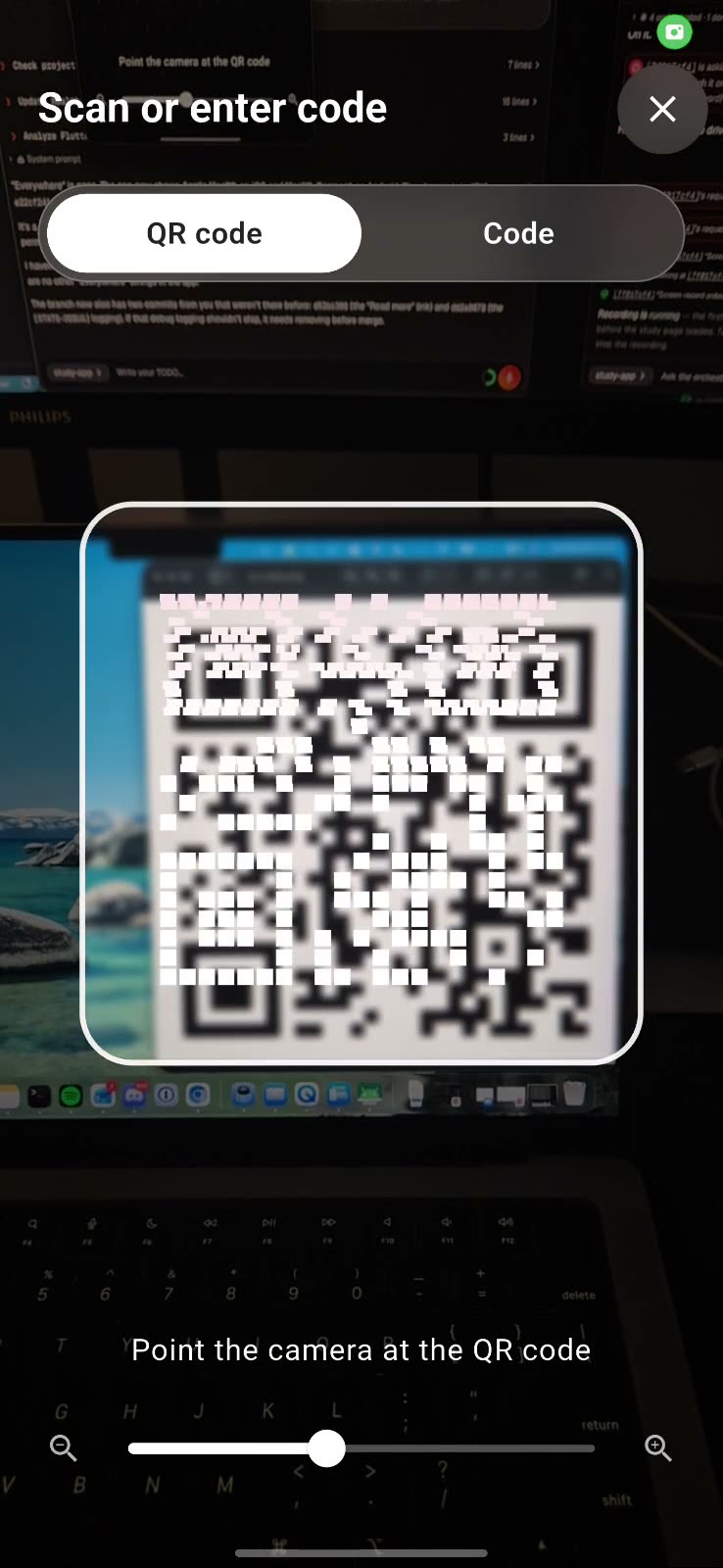
Section titled “2. Scan or enter the code”Allow the camera, point it at the QR code, or switch to the Code tab and type the short code.
3. Accept the invitation
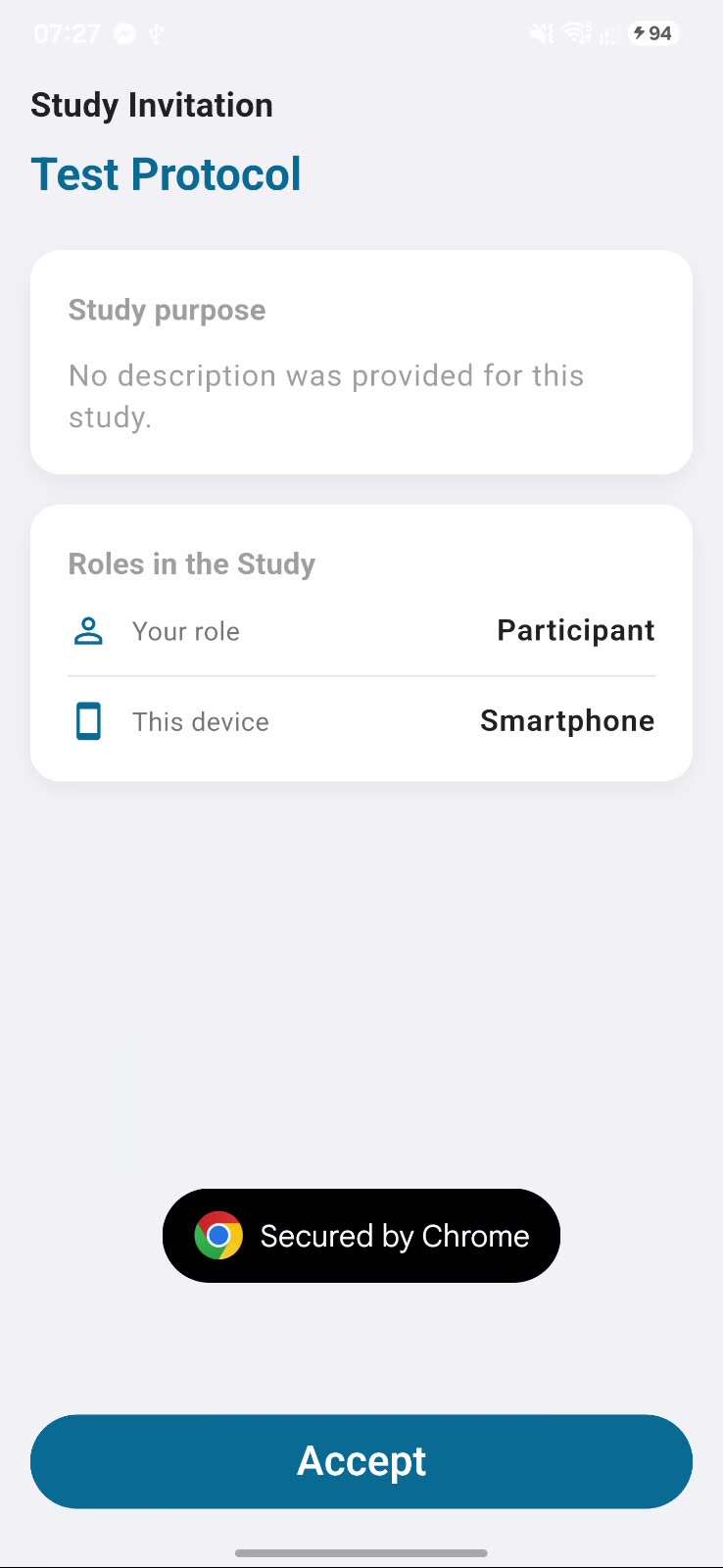
Section titled “3. Accept the invitation”The app shows the study invitation: its purpose, your role (for example Participant) and this device (Smartphone). Tap Accept.
4. Onboarding, part 1 of 3: learn and allow
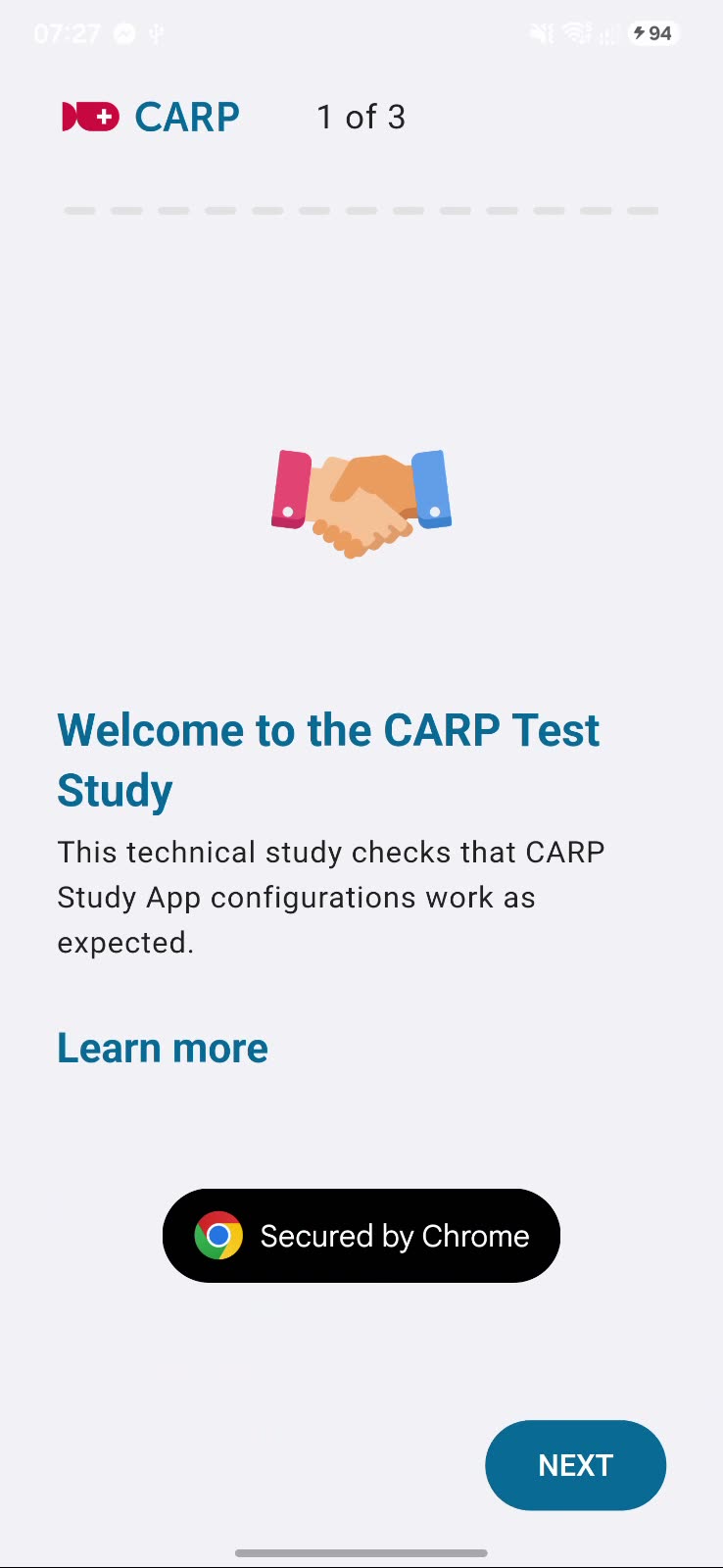
Section titled “4. Onboarding, part 1 of 3: learn and allow”A few short screens explain the study. Each has a Learn more link. After the introduction, the app asks for what the study needs. Each request comes with a sentence on why.
In the recording the app asks for these, one at a time:
- Location. Android offers Allow all the time or Allow only while using the app. Collecting in the background needs the first.
- Physical activity, for steps and whether you are walking or still.
- Microphone, for audio and video tasks.
- Notifications, so the app can tell you when a task is ready.
- Health data from Health Connect (Android) or Apple Health, such as activity, steps, sleep and vitals.
- Run in the background. Android asks you to stop battery optimization for the app, so collection continues when the app is closed.
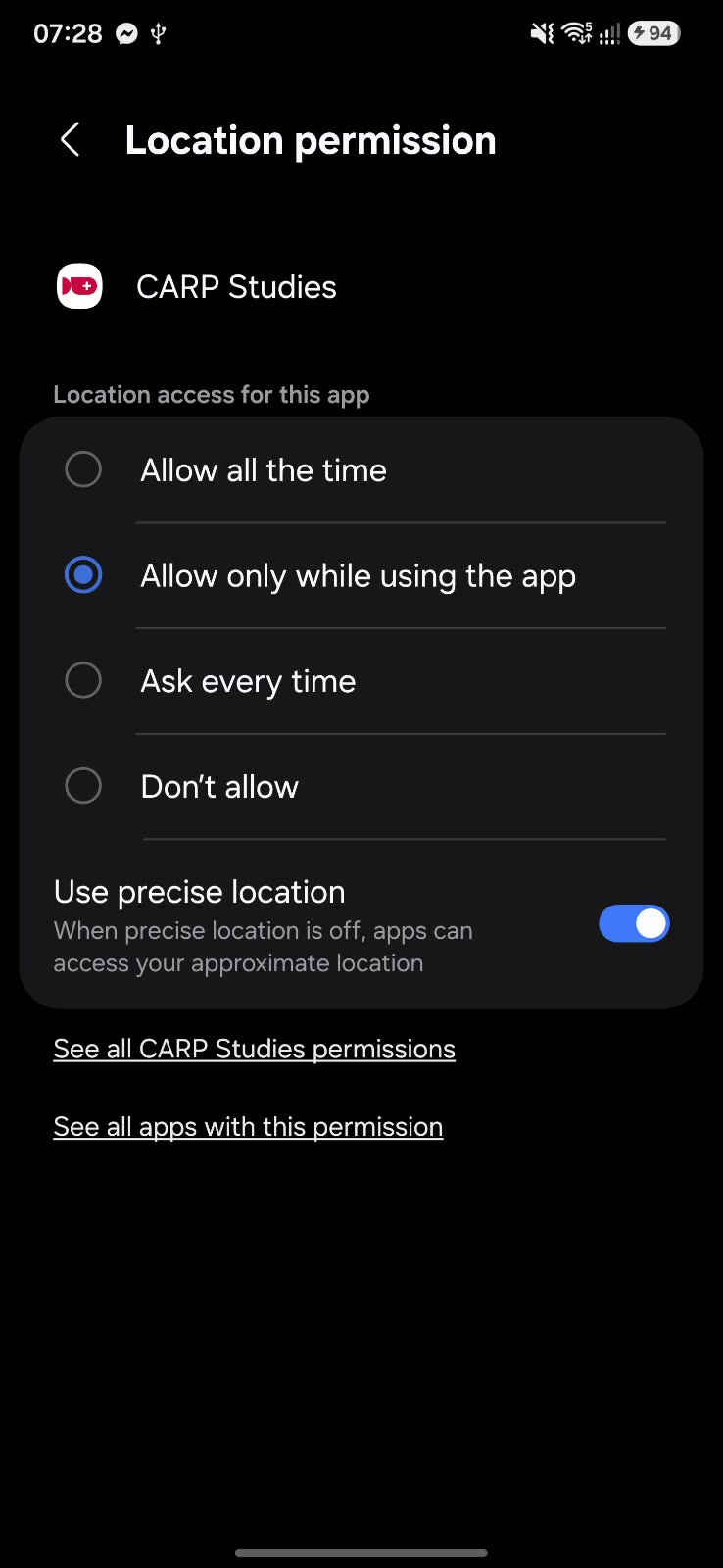
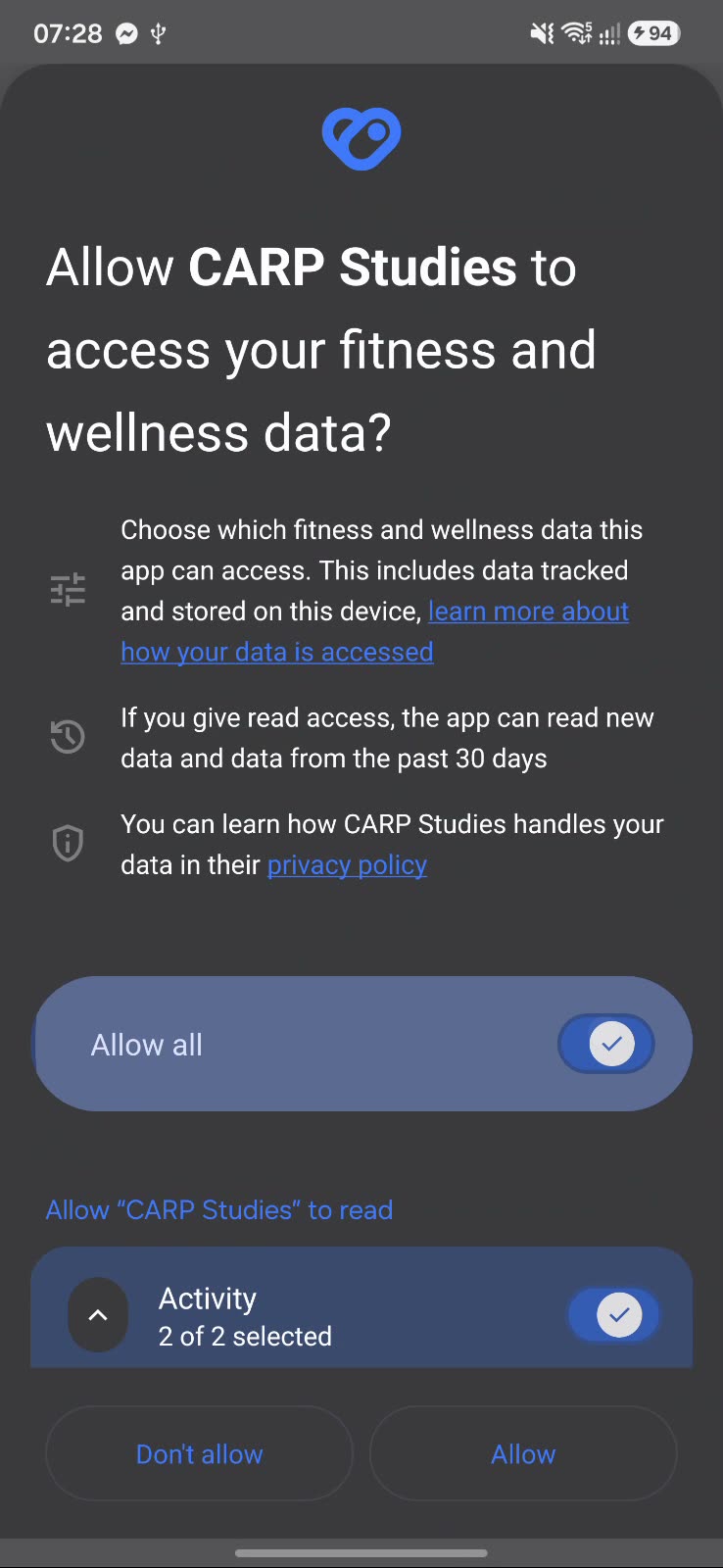
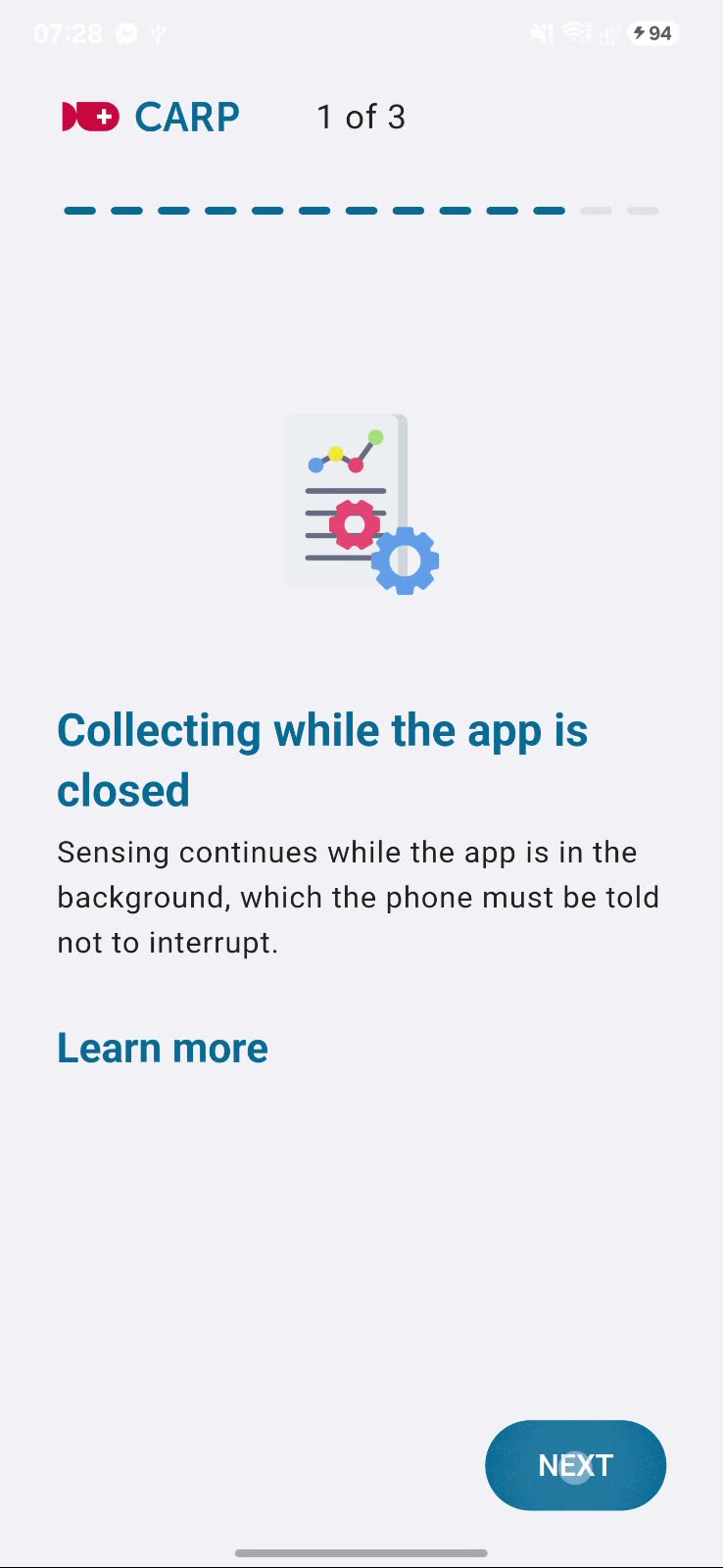
5. Onboarding, part 2 of 3: consent
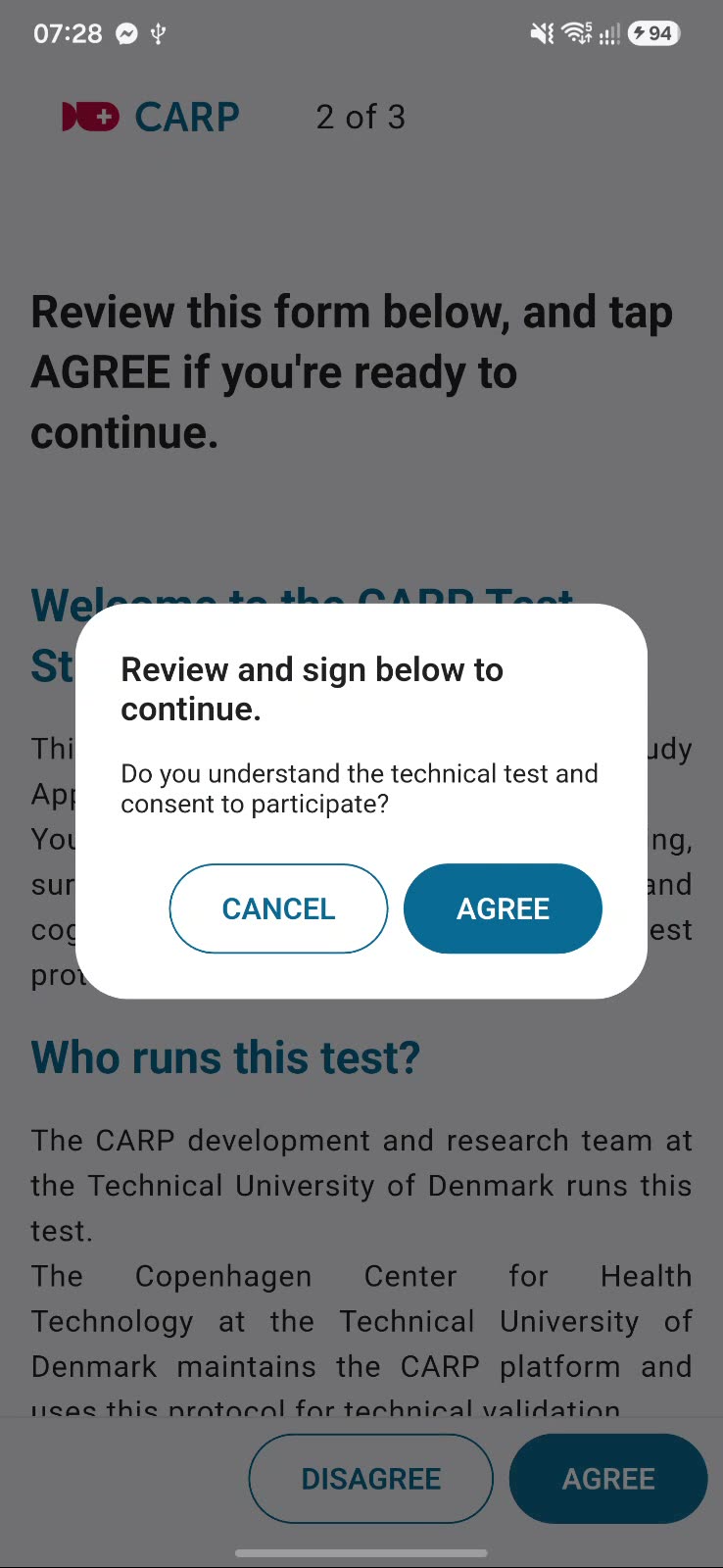
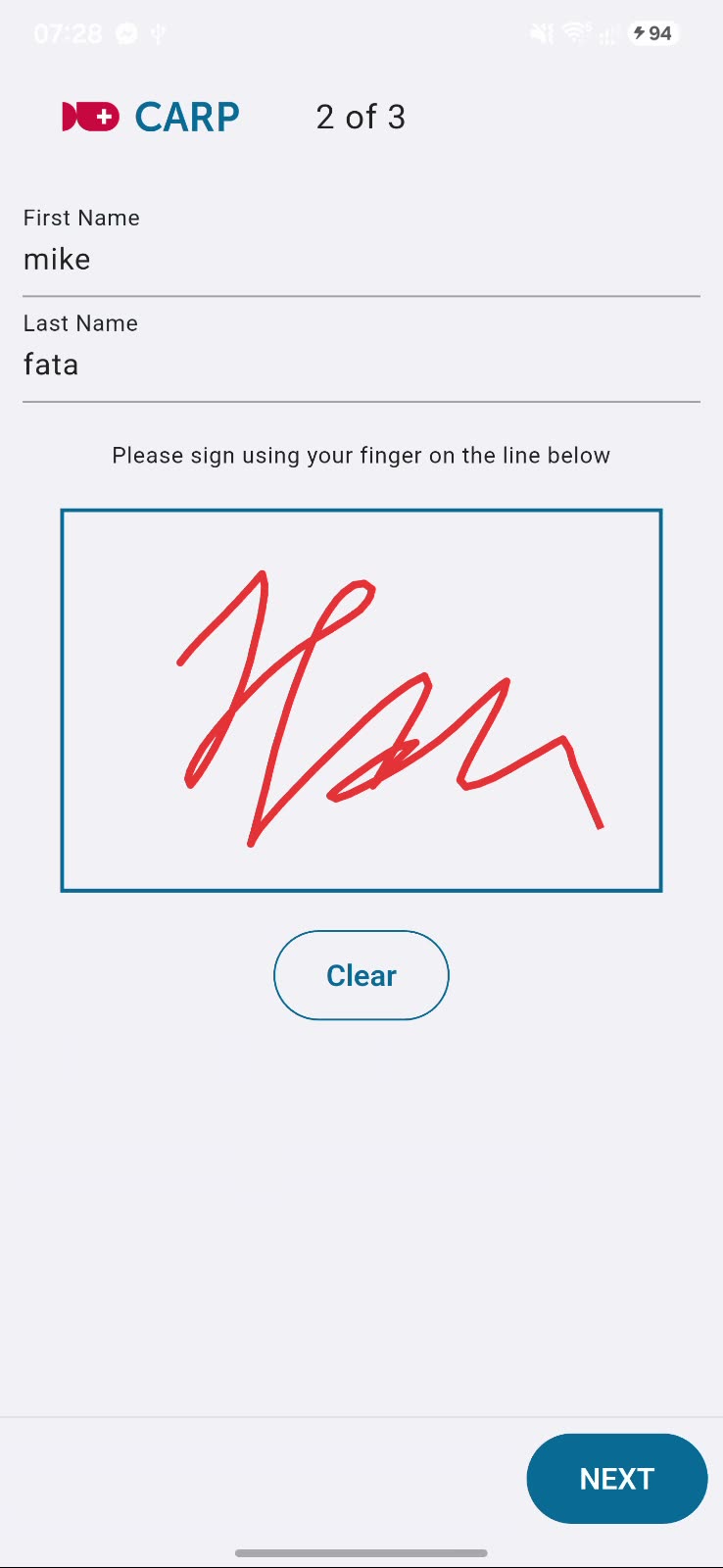
Section titled “5. Onboarding, part 2 of 3: consent”The app shows the informed consent form. Read it and tap Agree. Then type your first and last name and sign with your finger.
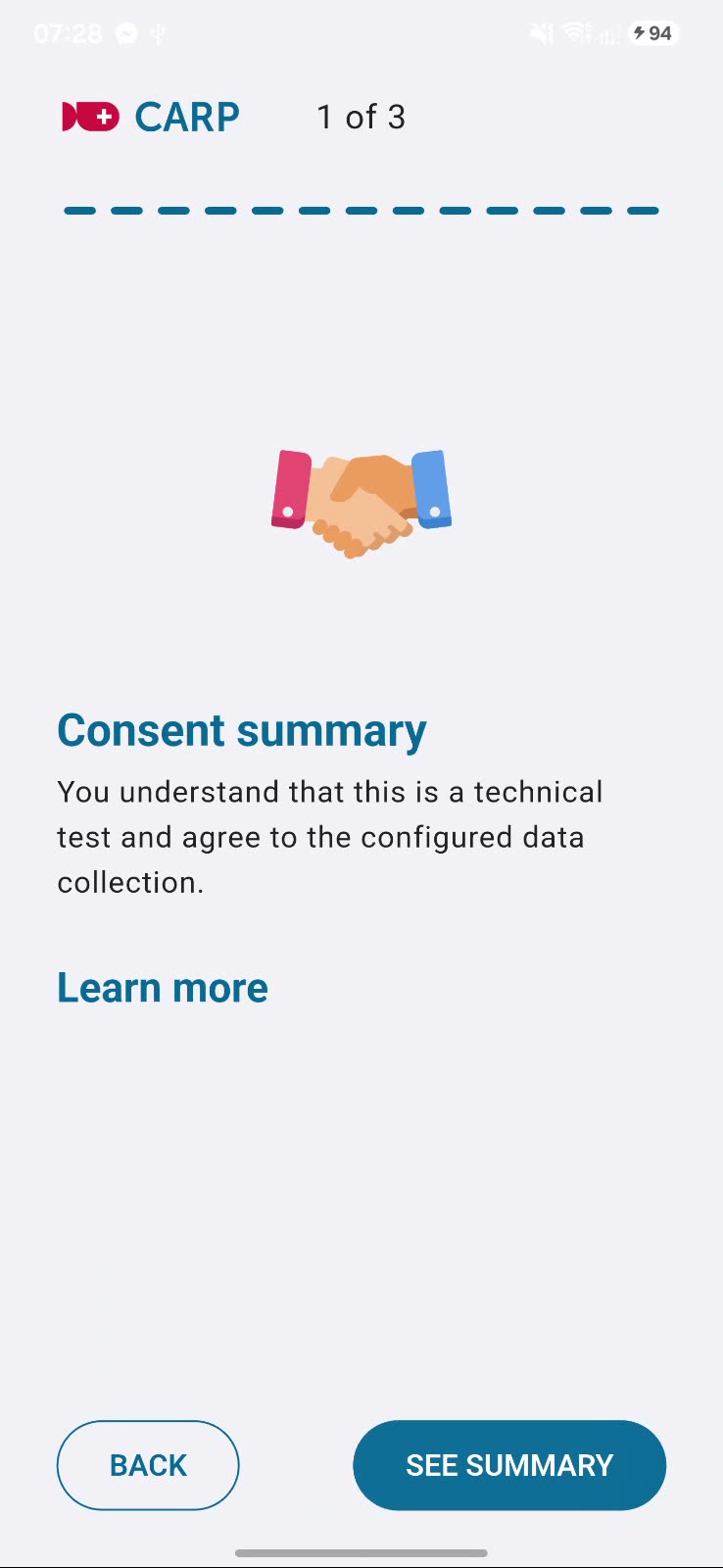
6. Onboarding, part 3 of 3: done
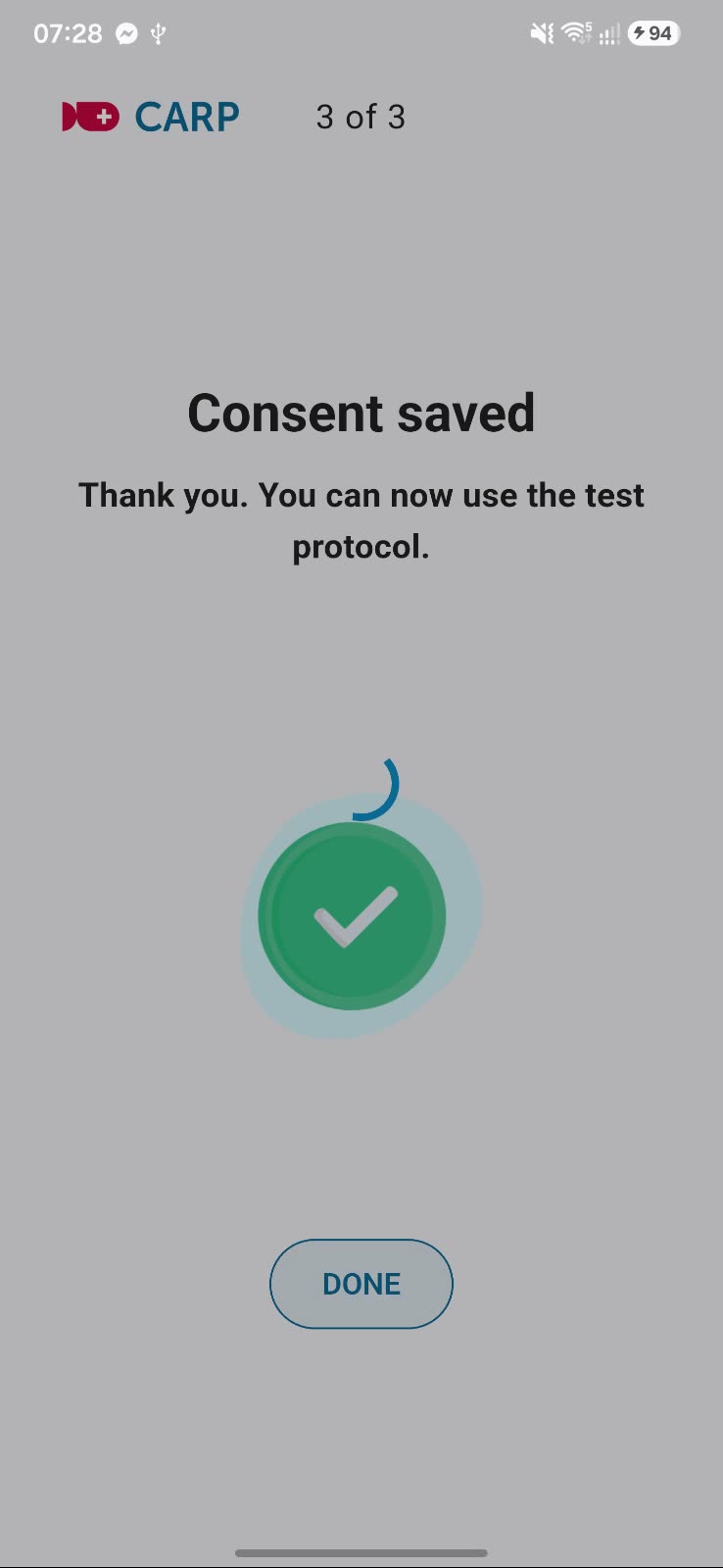
Section titled “6. Onboarding, part 3 of 3: done”“Consent saved.” Tap Done.
7. Using the app
Section titled “7. Using the app”The app opens on Home.
The app has four tabs at the bottom. Your profile is the round icon at the top right.
| Tab | What it is for |
|---|---|
| Home | The study you are in, a summary of what is connected, your progress, and messages from the study team. |
| Tasks | Things the study asks you to do. |
| Statistics | Your own data in charts. |
| Connections | The phone, wearables and services the study uses. |
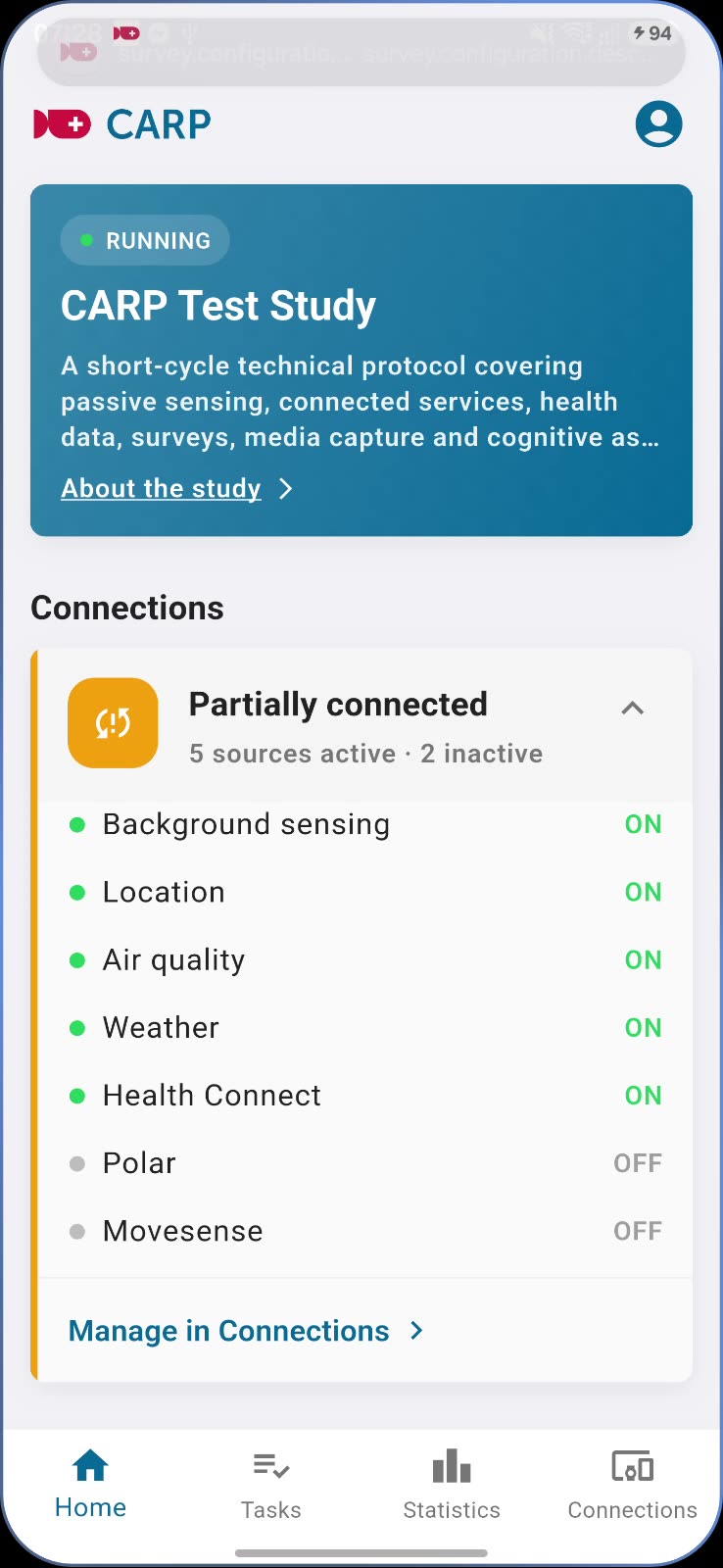
- About the study opens the study description, privacy policy, who to contact, who is responsible, and a download of your signed consent.
- Connections says how many data sources are active, for example Partially connected: 5 sources active, 2 inactive.
- Your progress shows how many days you have been in the study and how many tasks you completed and have pending.
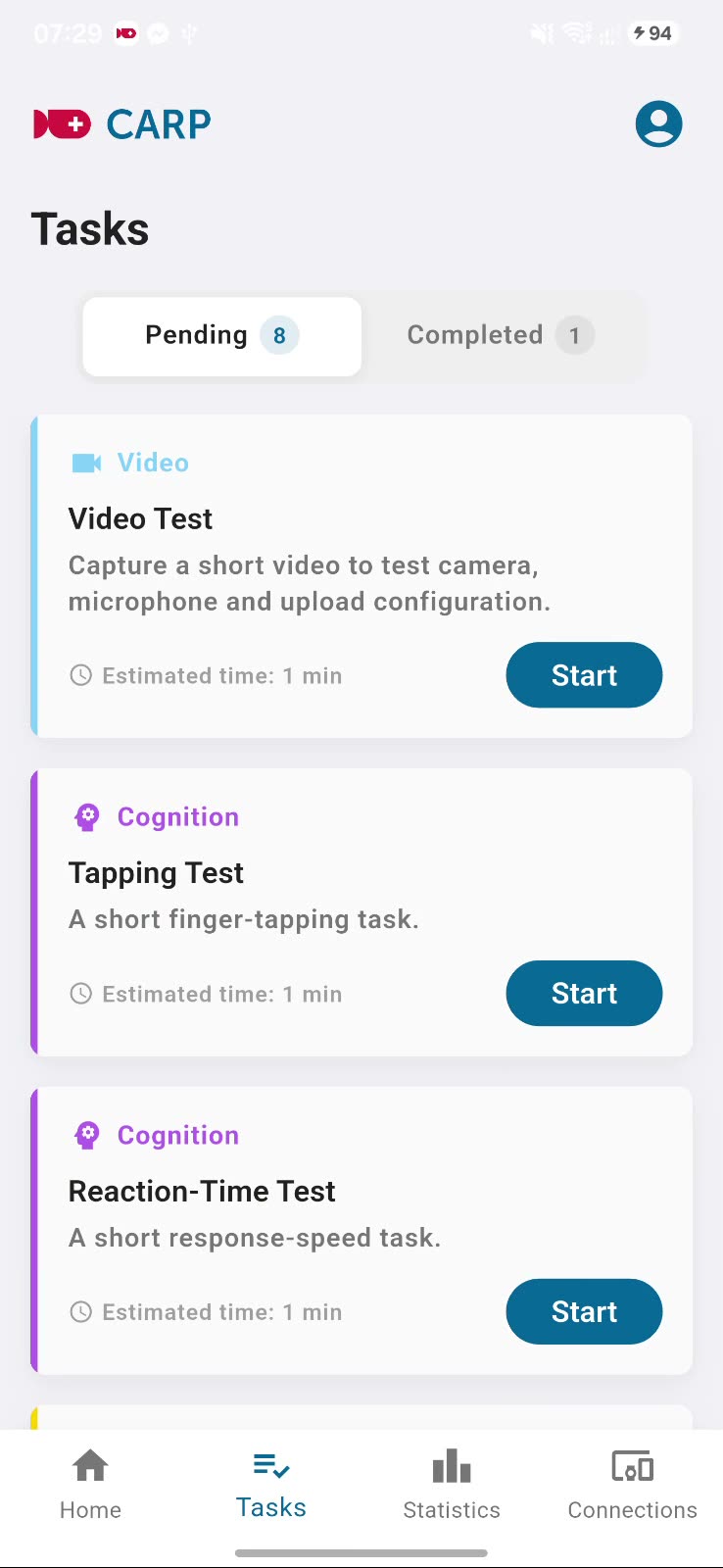
Tasks have two lists, Pending and Completed. Each card shows the kind of task, how long it takes, and how long is left. Tap Start.
| Kind | Example |
|---|---|
| Survey | A questionnaire with choices, sliders, numbers, dates and free text. |
| Cognition | Tapping test, reaction-time test. |
| Audio / Video / Image | Record your voice, a short video, or take a photo. |
| Health | Health assessments. |
A survey shows its progress (for example 3 of 8), has a Next button, and lets you skip questions the study allows to skip.
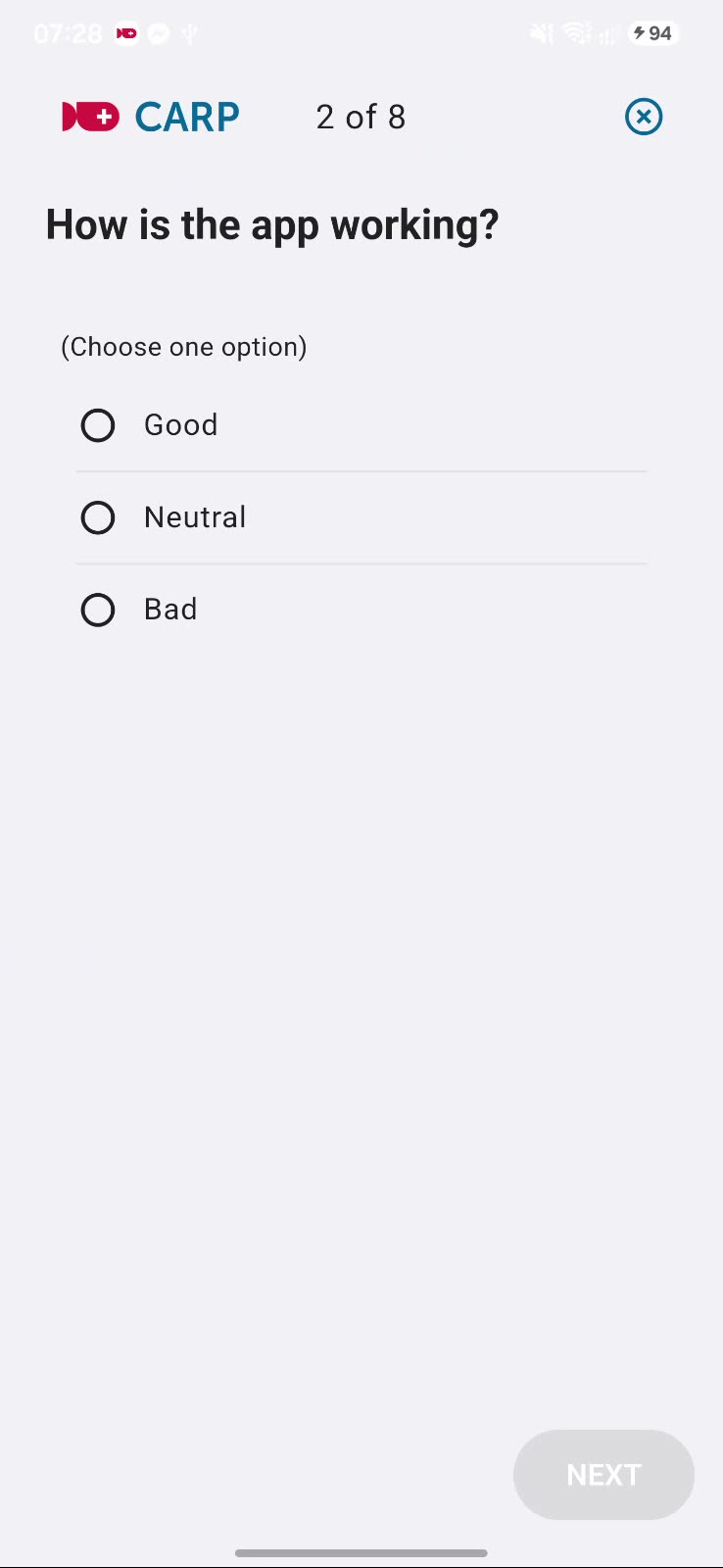
Tasks can be timed. A task that is not done in time moves to Expired. Developers: this is the AppTask and UserTask model in App tasks.
Statistics
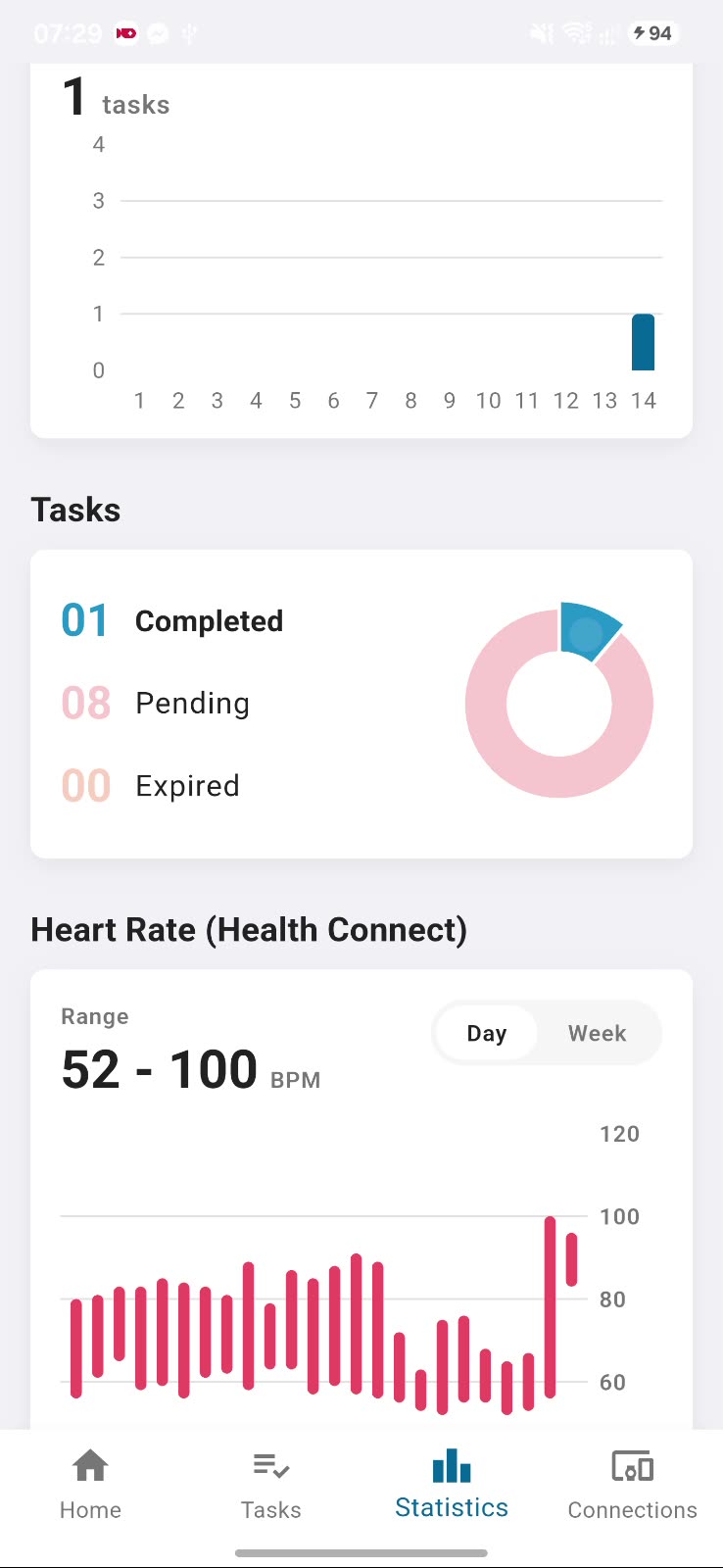
Section titled “Statistics”Charts of the data the study collects, for example tasks completed, heart rate, sleep and steps. Which charts you see depends on what the study measures.
Connections
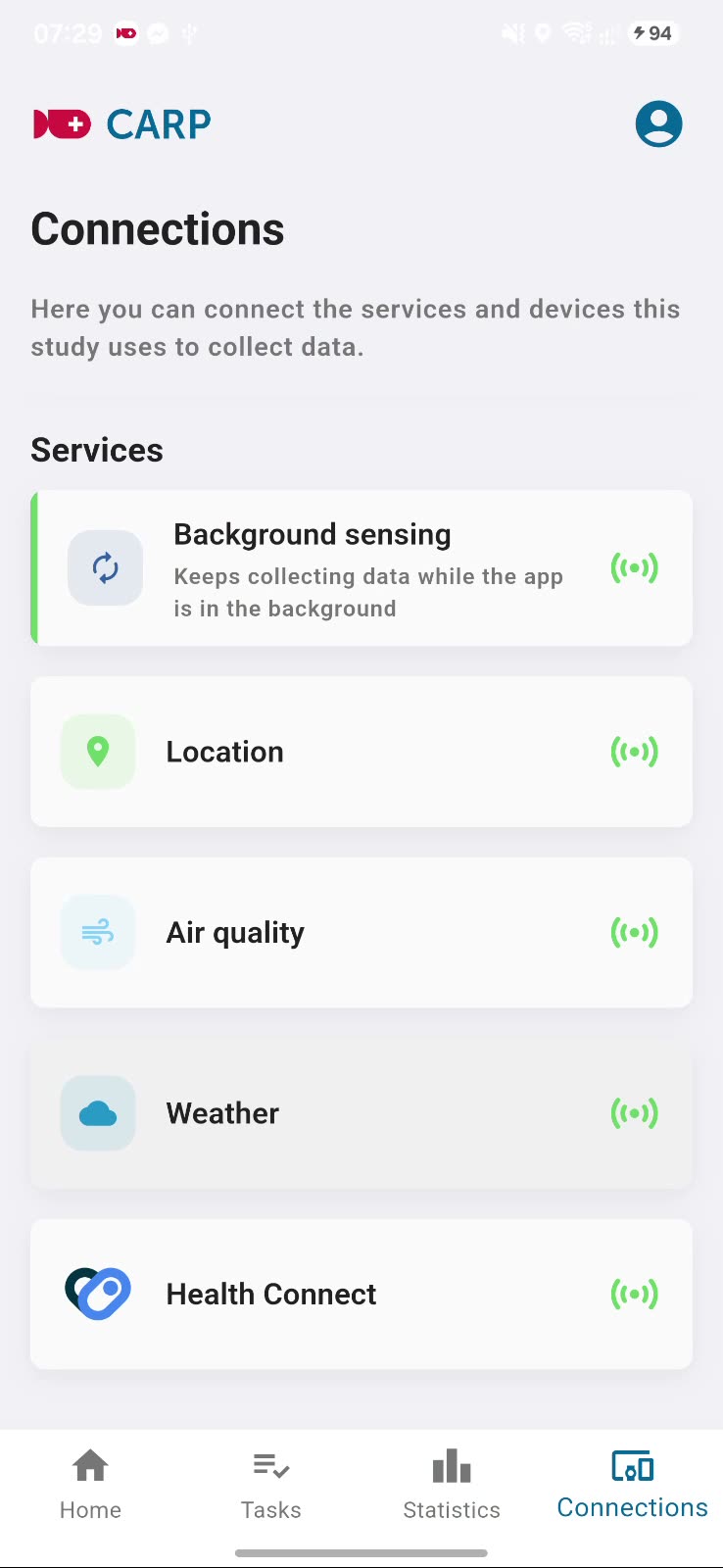
Section titled “Connections”Shows the phone, the devices you can connect (for example Polar and Movesense, with a Connect button), and the services the study uses: background sensing, location, air quality, weather and Health Connect.
Leave the study
Section titled “Leave the study”Open your profile. Leave study stops the study on this phone and takes you back to your other invitations, or signs you out if there are none. Sign Out leaves the study and signs you out.